I’m beginning to play with visual tools for text analysis. Here’s some useful resources and explanation why.
In a bit of an “aha!” moment last week, I realised that a problem with my research into kindness and libraries may be solved by grabbing large datasets produced by a bibliographic search, and then playing with visualisation.
“Kindness” is a single term that represents a multi-faceted concept, used differently according to which discipline is describing it. I have been trying to find a way to validly come up with a top ten or so of possible meanings that may be useful when discussing it in libraries. It did not feel right to just sit at my desk, hunting and pecking through databases for much-cited works and saying (as one often does in a literature review), “I am smart and thorough, so what I found is representative of what is there”.
I LOVE that the best tools in the area are free and open source. How knowledge should be 🙂
In a session run by ALIA Academic and Research Libraries Group here in Perth last week, Samantha Blake ran though the two text visualisation tools below.
VOSViewer – created at Leiden University in the Netherlands for visualising bibliometric analysis. Can ingest data produced from a number of bibliographic sources like Scopus or Web of Science and visualise interrelationships like do-authorships or subject clustering. Here it is mapping the topic clusters for 40 records from Web of Science retrieved from a search for “kindness”.

Voyant Tools Workbench- created by two Canadian academics, this has a number of different ways of conceptualising bibliographic data. Here is a file of over 1000 Web of Science records with a search on “kindness”, with just “WOS” and “journal” manually added as stop words. The lower left window appears be a topic modelling analysis, which means that a separate pass with something like the MAchine Learning to LanguagE Toolkit (MALLET) may not be necessary.

Other tools I have been fiddling with are:
Open Knowledge Maps , a “visual interface to the world’s scientific knowledge”. It doesn’t play with your data, but retrieves clusters of papers from their dataset of OA works, around the same themes.

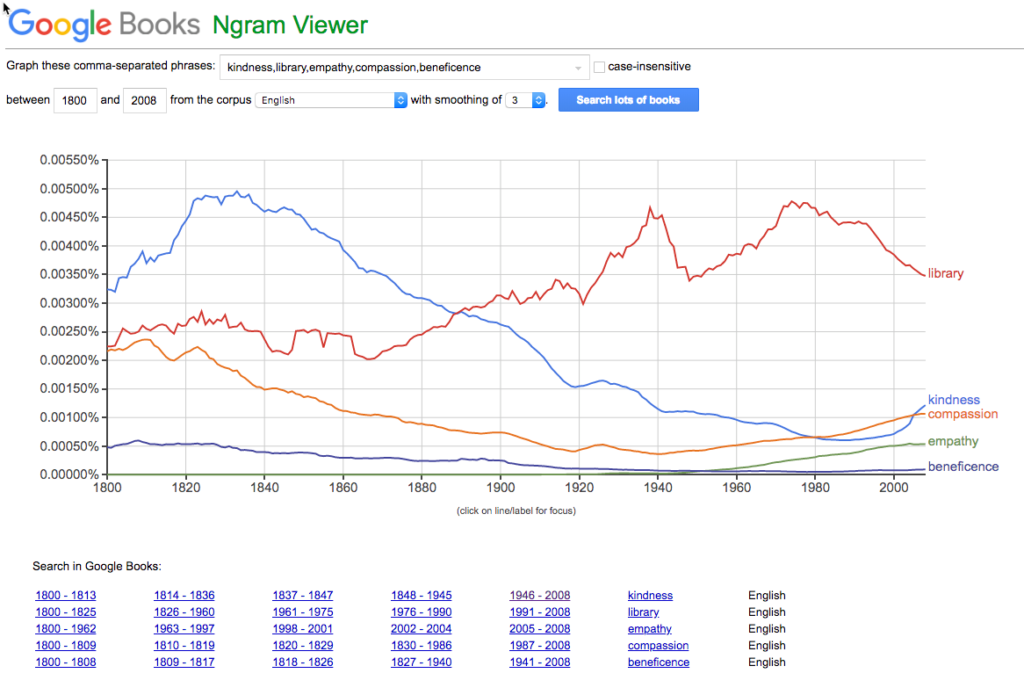
Google Books Ngram Viewer – plots frequency of term in Google’s scanned books project – sadly only until 2008. For me, this is very annoying, as there was a definite trend upward in the term “kindness” (blue line below) in the last 10 years of the data, and I would like to know if it continued.
Some unexplored but similar visual text analysis tools:
- Scimat – University of Granda, Spain
- BibExcel – created by Olle Persson, who is wonderfully described in German as a Informationswissenschaftler
- Pajek – from the University of University of Ljubljana, Slovenia
- CiteSpace – Chaomei Chen at Drexel
- Doing it all from scratch in R . R for Social Scientists at data carpentry is a good starting point.
- (Tableau . Commercial. Corporate. Not OSS. Not my kind of tool at all – which is why I should check it out before rejecting it )
Directories of many, many more tools:
- TAPor 3 – The Text analysis Portal for Research. Canadian-based directory of over 900 tools useful for text analysis
- DIRT directory. Directory of digital research tools. Support from the Andrew W. Mellon foundation with initial support of US universities
And some jumping-off points where other tools and techniques can be explored:
-
DH101: A Highly Opinionated Resource Guide by Miriam Posner
-
Digital Tools and suchlike. A list for Australian historians, Tim Sherratt
- HASS DEVL – Australian Humanities and Social Sciences. Includes its own instance of Voyant Tools