
I bought an Ipad Pro last year because I wanted to hand-annotate the many, many .PDFs of journal articles that I am reading this year. I think better when I write on things. With handwriting. But I did not want the waste of time and resources to print out copies – and then need to store and track them.
I have found, however, that I am using the iPad for many, many things more. To the extent that it has totally replaced my 2011 MacBook Air that was my main home computer on the three or four days during the week when I leave my laptop at work.
I use three different apps to take handwritten notes, which feels a little excessive.
I did try Nebo, where you handwrite and it converts notes into typed text, because I thought I would use it all the time for first drafts. Nope. I think faster than I can write when I am making sure I am neat enough for the text-conversion.
When I start interviews for a project in a couple of years, I will probably use SoundNote. This records audio and syncs it to the spot in my handwritten notes, if I tap that part when reviewing. It also has a desktop version, so it would be possible to take typed notes/record audio there and use the files on my iPad later. Again, I thought I would use this quite a bit in meetings/seminars, but it really is the act of handwriting that creates the connections in my brain and lets me fit new knowledge into what I already know, so reviewing to audio afterward for most tasks seems superfluous.
So, below are the three apps I seem to have settled on for regular use…
1.Writing on existing documents
For annotating academic papers and PDFs, I use LiquidText. This was designed by academics, for academics who are reading journal articles. It is definitely the most expensive app I have ever bought. And worth every cent.
You can excerpt text very easily, add concept maps and handwrite on the page. You can even put one finger at the top of the document and then use your thumb to concertina the rest of the document up like you are scrunching up a page – great for jumping quickly to see a result, or follow up a reference, without losing your place where you have read to.
I also use this for things like marking up the list of students and marks before a Board of Examiners Meeting, to note those to follow up in the meeting. Or to open an Excel spreadsheet of a class list with blank cells and use it to handwrite marking notes and tick off students once marked. And to handwrite study plans for students when I am mapping units completed on to the blank list of units in order – far quicker than trying to type in year/semester next to each one… and then I can just flick the student the .PDF via email.

2. Notetaking at live events
I take notes in seminars and meetings using Penultimate . This is an Evernote App made for handwriting notes. The big advantage is that these notes are added to Evernote like any other note, then my handwritten text is indexed and searchable like typed text – if I write neatly enough.
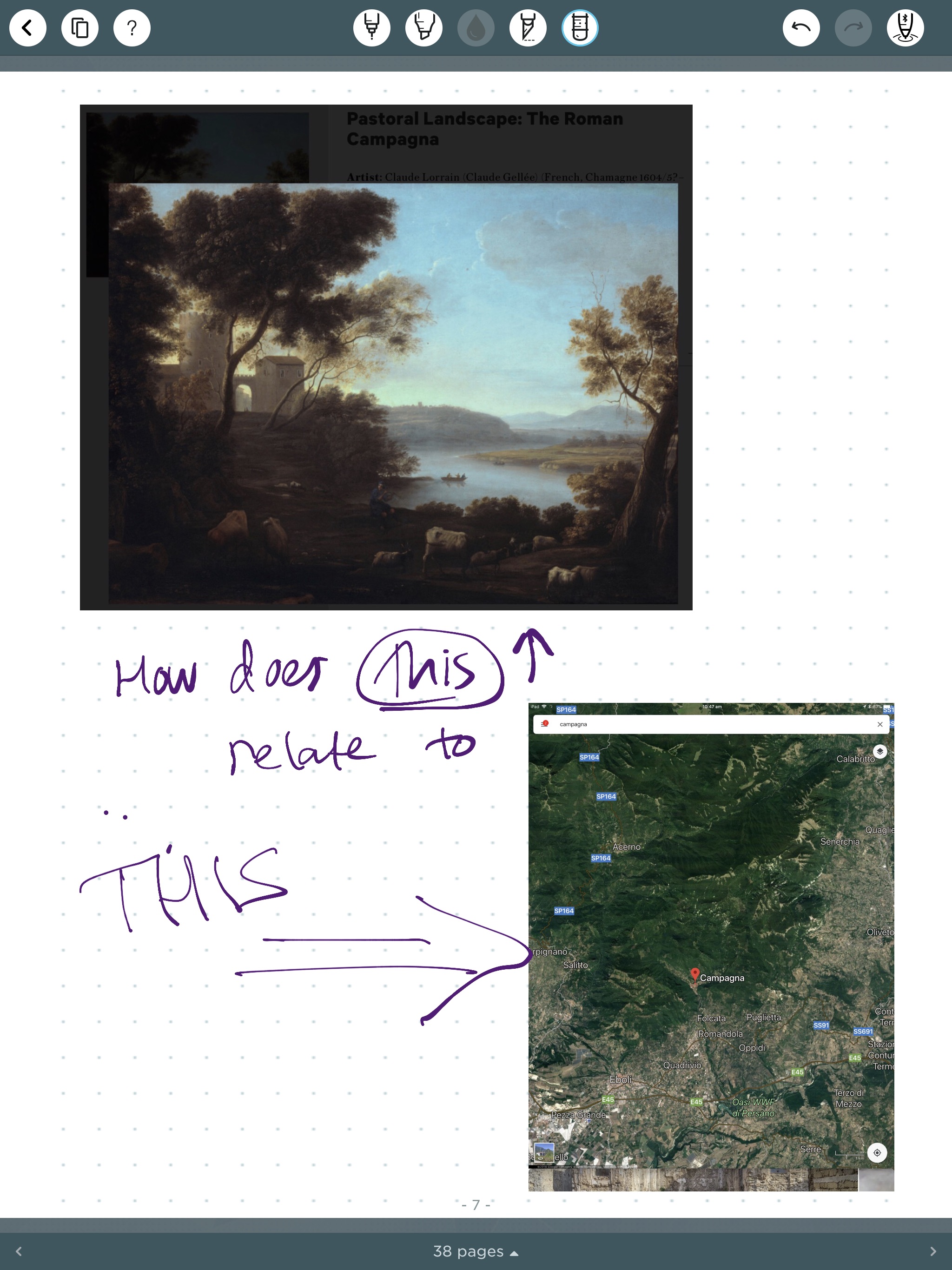
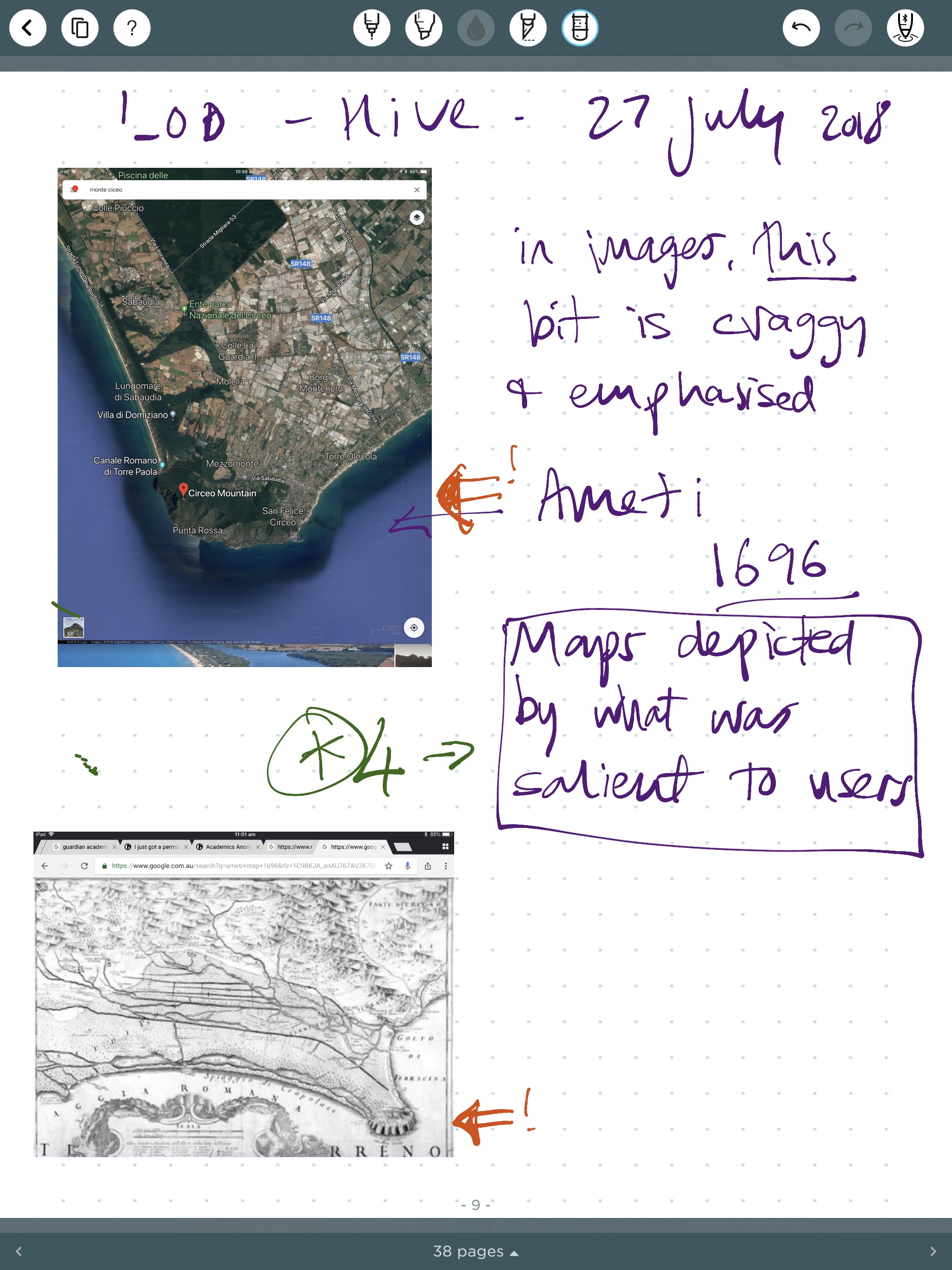
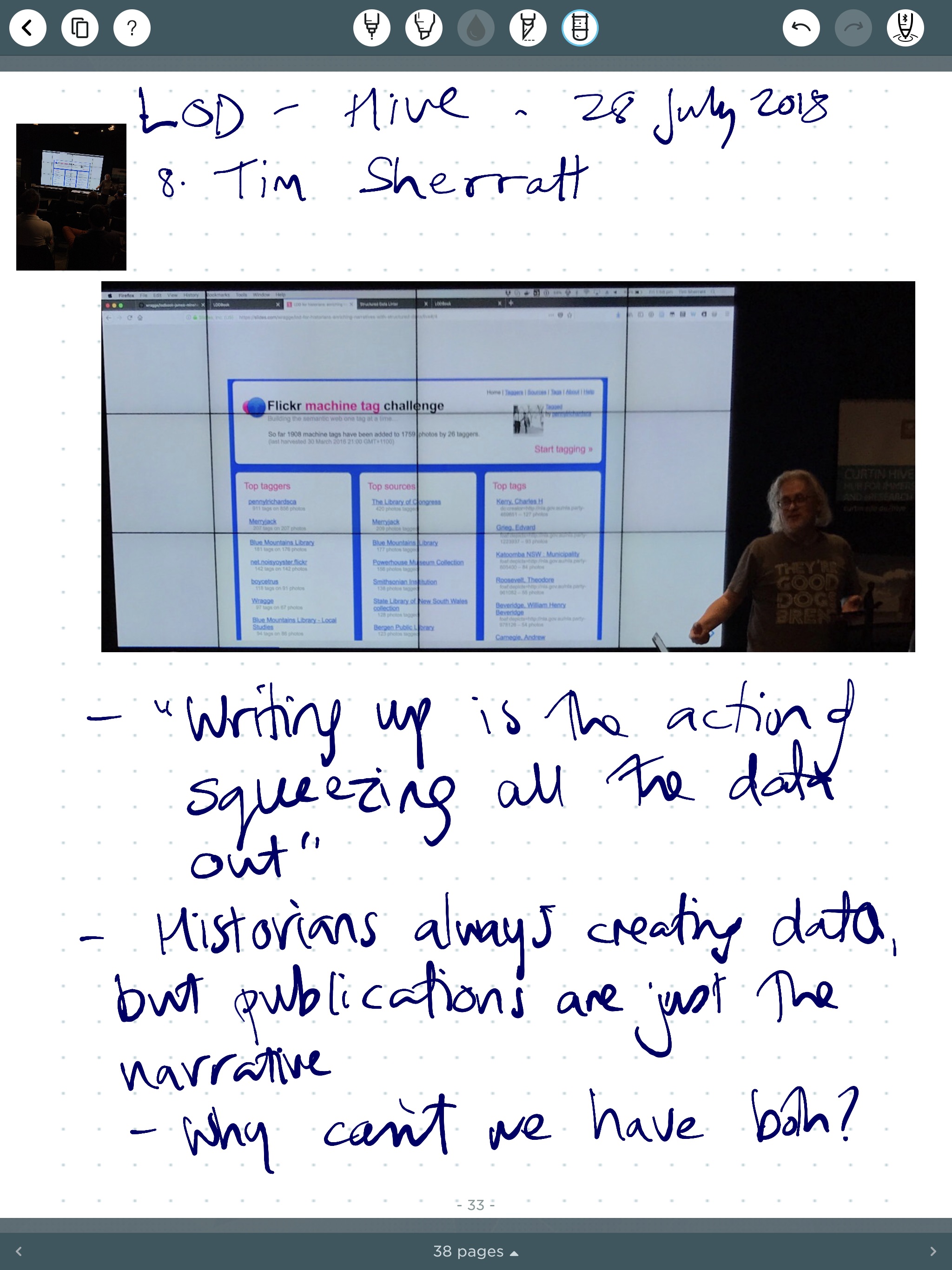
It also allows me to add images, either directly from the camera or my camera roll. If I receive handouts in a session and want to keep them, I take an image of each page and add it to the note set. I can then scribble on the image as though it was a sheet of paper. Unfortunately I cannot copy and paste text into the document, so if I want to grab a URL, I navigate to the page, grab the entire screenshot, including the URL. This actually makes my notes far more interesting.
Here are a couple of examples from the day long Linked Open Data seminar at the HIVE at Curtin on Friday 27 July 2018. They are from Bill Pascoe’s session on the Colonial Massacres Map , Katrina Grant’s session about mapping the landscape from art history and Tim Sherratt’s session about LOD books. All the images were of things I trotted off to the web to grab during the talk – sort of playing along from home with the slides. They will output as a .PDF, but I lose the resolution, which makes it harder to read the URLs. I uploaded a .PDF of my notes, plus the questions raised from today’s session in my last post, for those who asked for them.

/
/
3. Thoughts, brainstorming and doodling
Of COURSE, I have to use yet another app for handwritten notes for casual and informal thinking where I am not trying to save it for later. I like to use Noteshelf .
This can actually be used for both of the functions of the other two, to mark up .PDFs and record handwritten notes. But it does not have the overkill bells and whistles like LiquidText, nor the indexing and retrieval features of Penultimate.
It does, however, have the best writing experience. The pressure of my pen, the output on the page, both seem far more natural and more like I am … me, expressing myself. Hard to explain, but having a different zone and tool for this kind of thinking is a bit like the difference between reading a novel at the beach compared to a scholarly monograph in an office chair. Different modalities needing different settings.

One thought on “Handwriting with Apple Pencil on iPad Pro for academic work.”